REVERFIT
Reverfit’s workout app

Your plan,
set by set

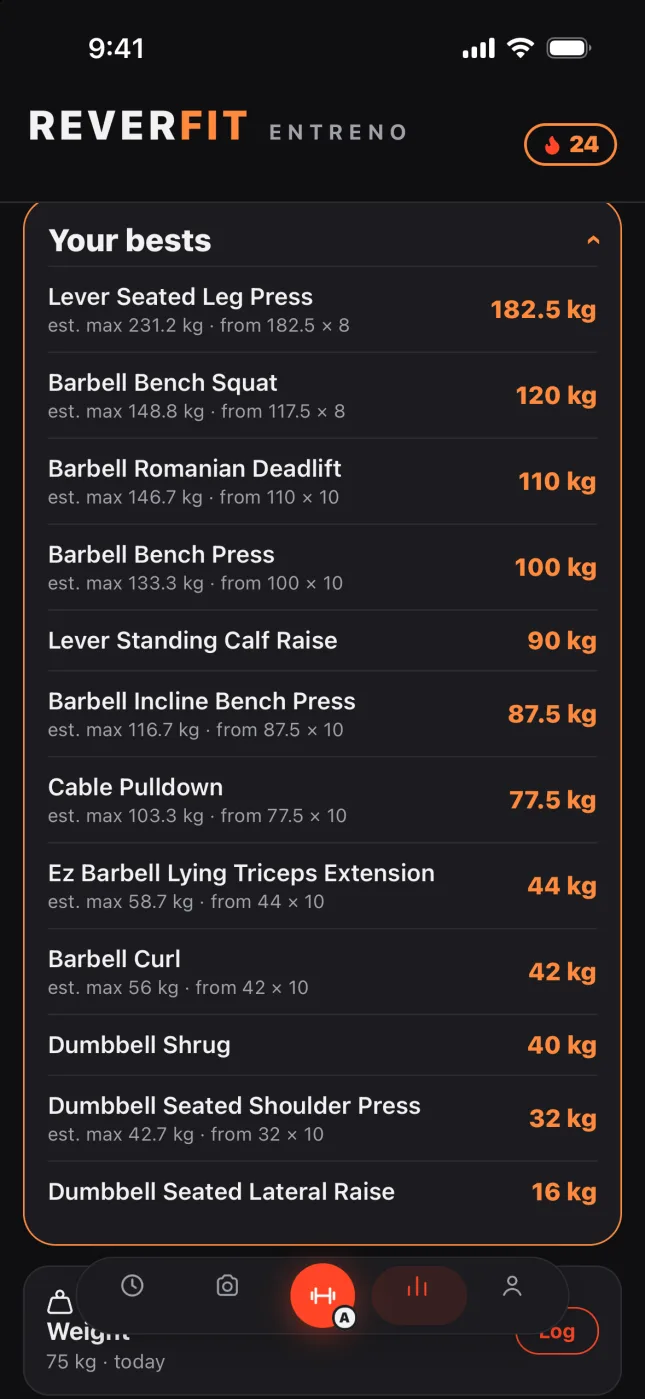
The weight and reps you really do, not the ones you planned. Your bests, the kilos you’ve moved and the map of what you’ve worked, always at hand.

Watch tutorials
Logging your workouts is free and has no ads. You sign in with Apple, Google or your email, with no expiry and no card. There’s a paid Pro that adds the weight for each set, the muscle map for the week and the month, your curves and your bests, your whole history, the heart rate strap, unlimited plans and CSV export. The yearly plan comes with a 7-day trial from your phone’s store, with your payment method, and you cancel it from there before it ends.
Your workouts are kept in your account, so they’re still there if you change phones. The app is in English, Spanish, Portuguese, French, Italian and German.

This is Reverfit Workout.

The same screens you see on the App Store and Google Play.

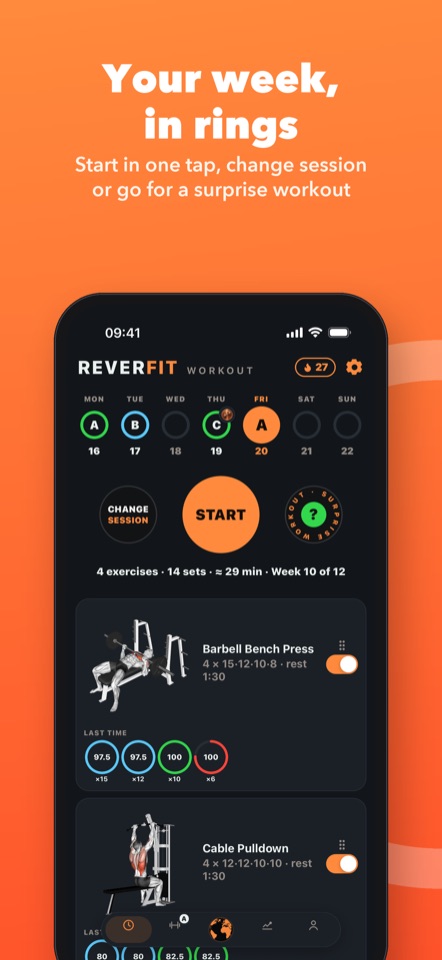
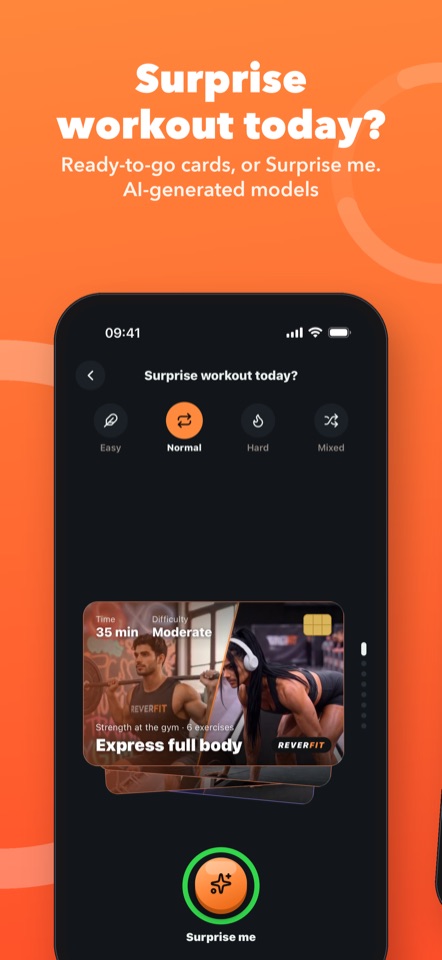
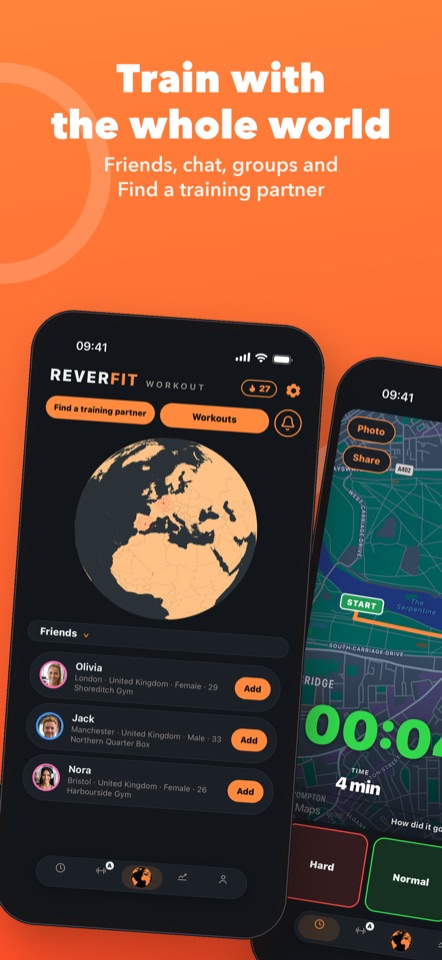
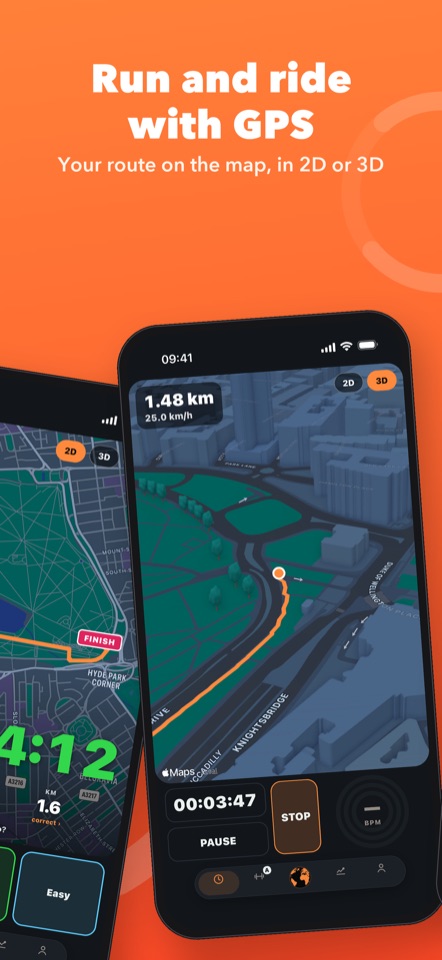
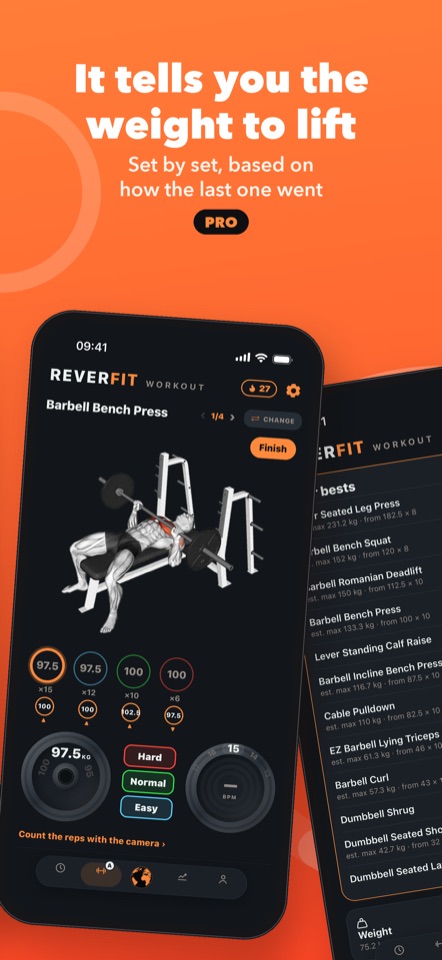
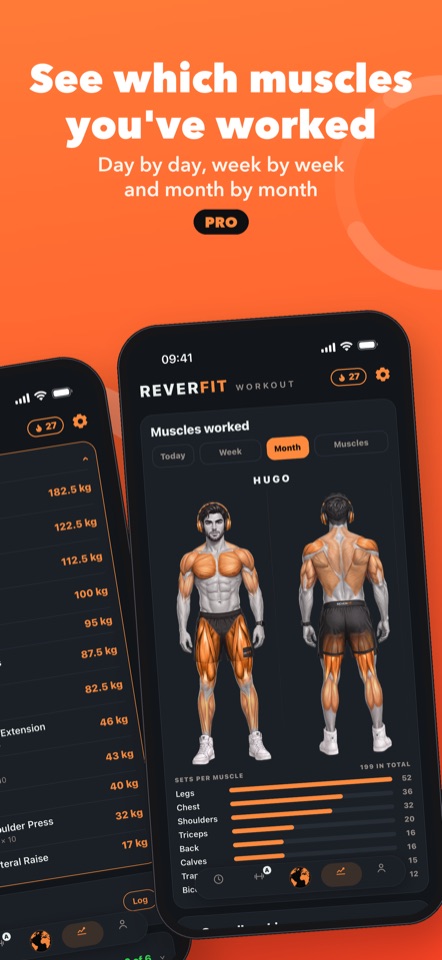
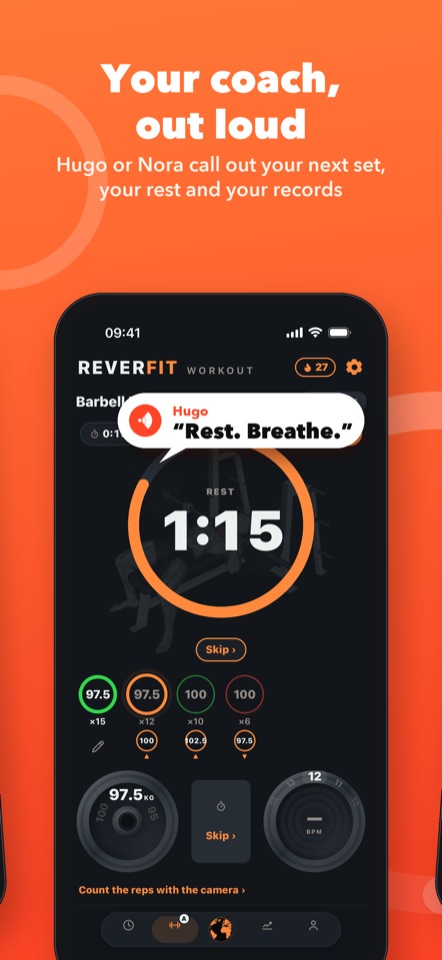
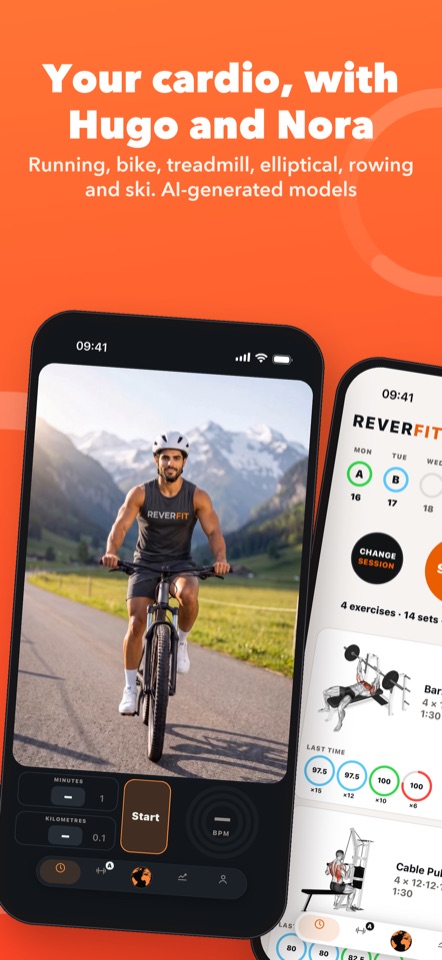
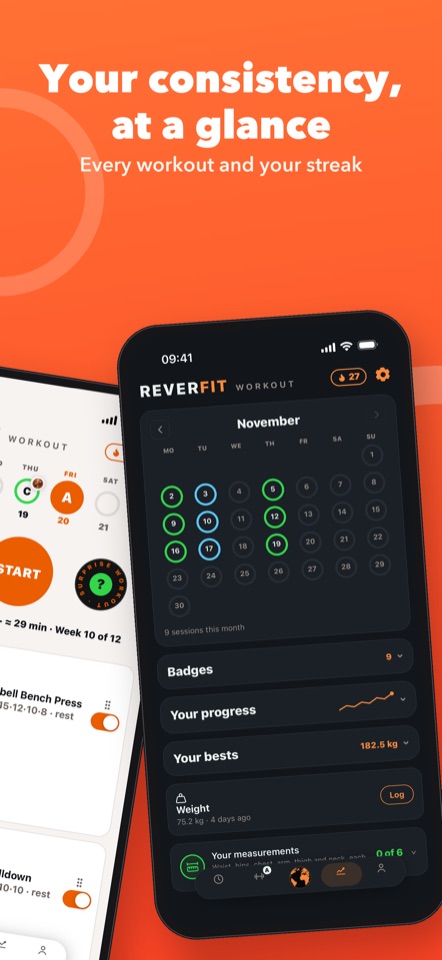
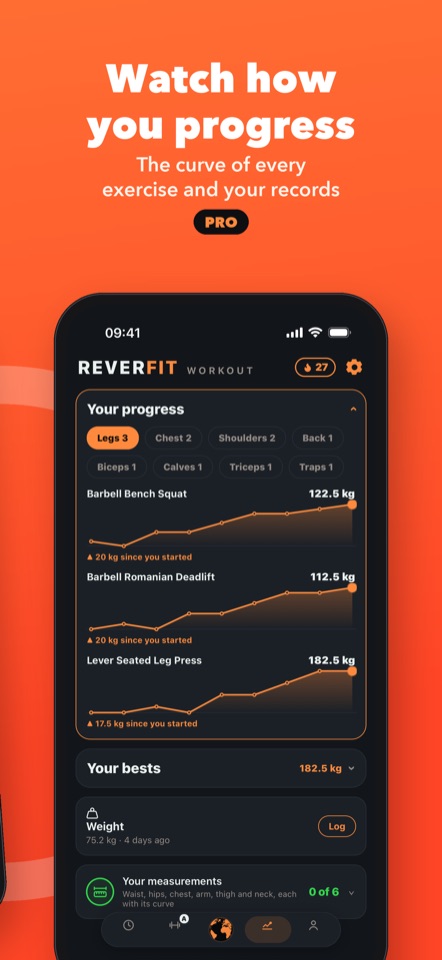
Your week, in rings: start in one tap, change session or go for a surprise workoutSurprise workout today? Ready-to-go cards, or Surprise me. AI-generated modelsTrain with the whole world: friends, chat, groups and Find a training partnerRun and ride with GPS: your route on the map, in 2D or 3DIt tells you the weight to lift: set by set, based on how the last one went. ProSee which muscles you've worked: day by day, week by week and month by month. ProYour coach, out loud: Hugo or Nora call out your next set, your rest and your recordsYour cardio, with Hugo and Nora: running, bike, treadmill, elliptical, rowing and ski. AI-generated modelsYour consistency, at a glance: every workout and your streakWatch how you progress: the curve of every exercise and your records. Pro
Video tutorials

Learn it in a few minutes.

Today: your week and your session1:34

Watch the playlist on YouTube · All the tutorials

Inside, screen by screen.

Scroll slowly: each sentence changes the phone's screen.

Reverfit Workout: the week in rings at the top and the start, change session and surprise workout circlesReverfit Workout: the exercise in progress, each set is a ring with its weight and repsReverfit Workout: the rest countdown between setsReverfit Workout: the map of the muscles worked this weekReverfit Workout: the progress curves of each exerciseReverfit Workout: the list of your bests by exercise

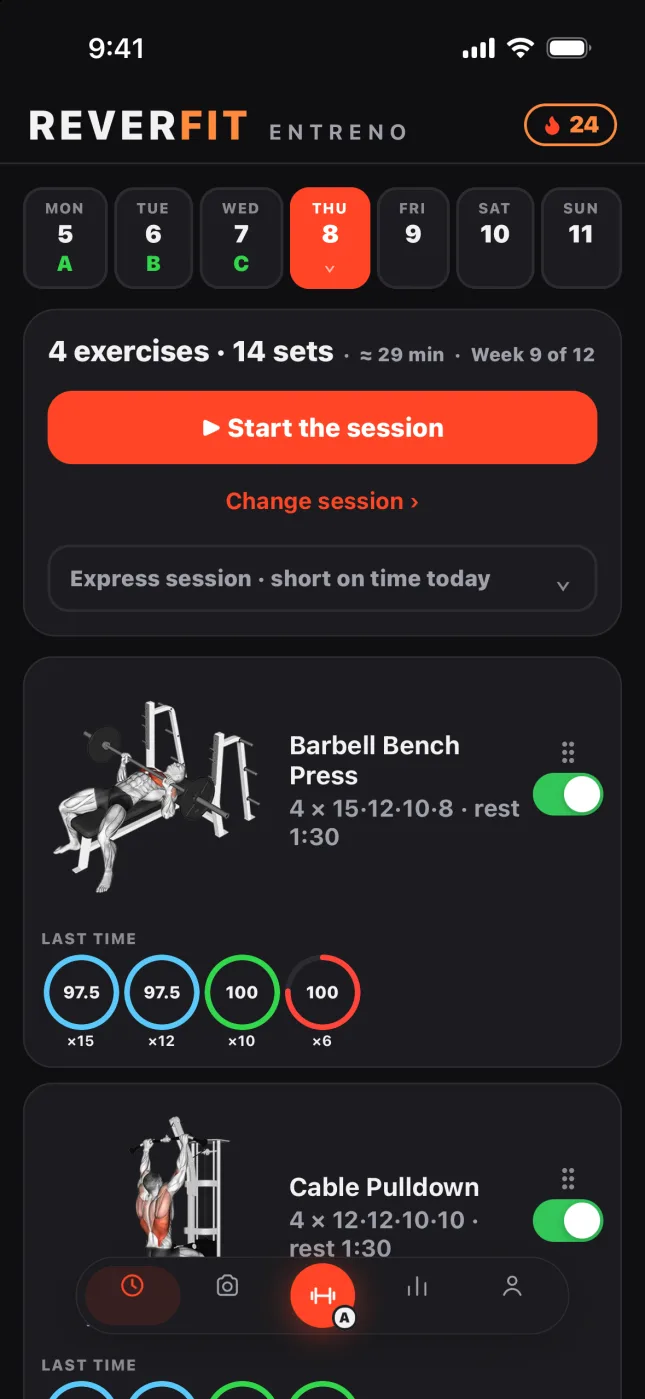
Here's today's session.

Your week at the top, one ring per day that fills up with what you train and takes the colour of how it went. Below, start with one tap, change session or go for a surprise workout, without losing your plan.

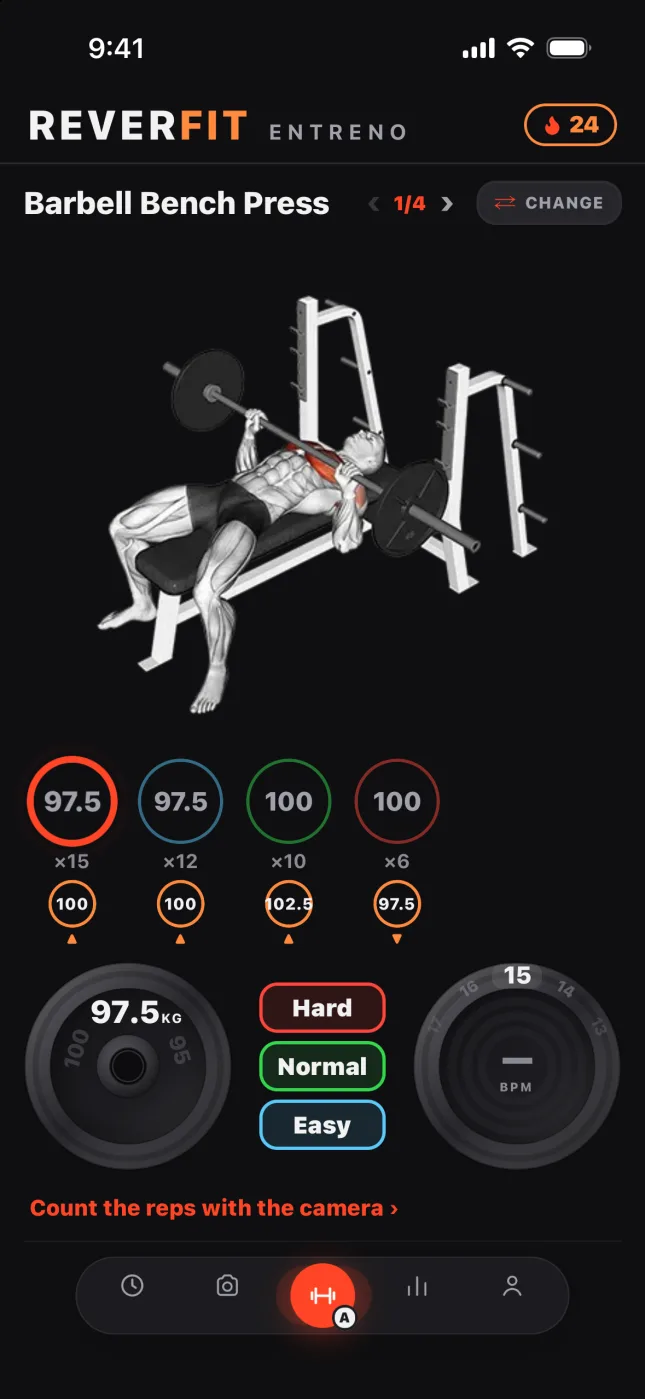
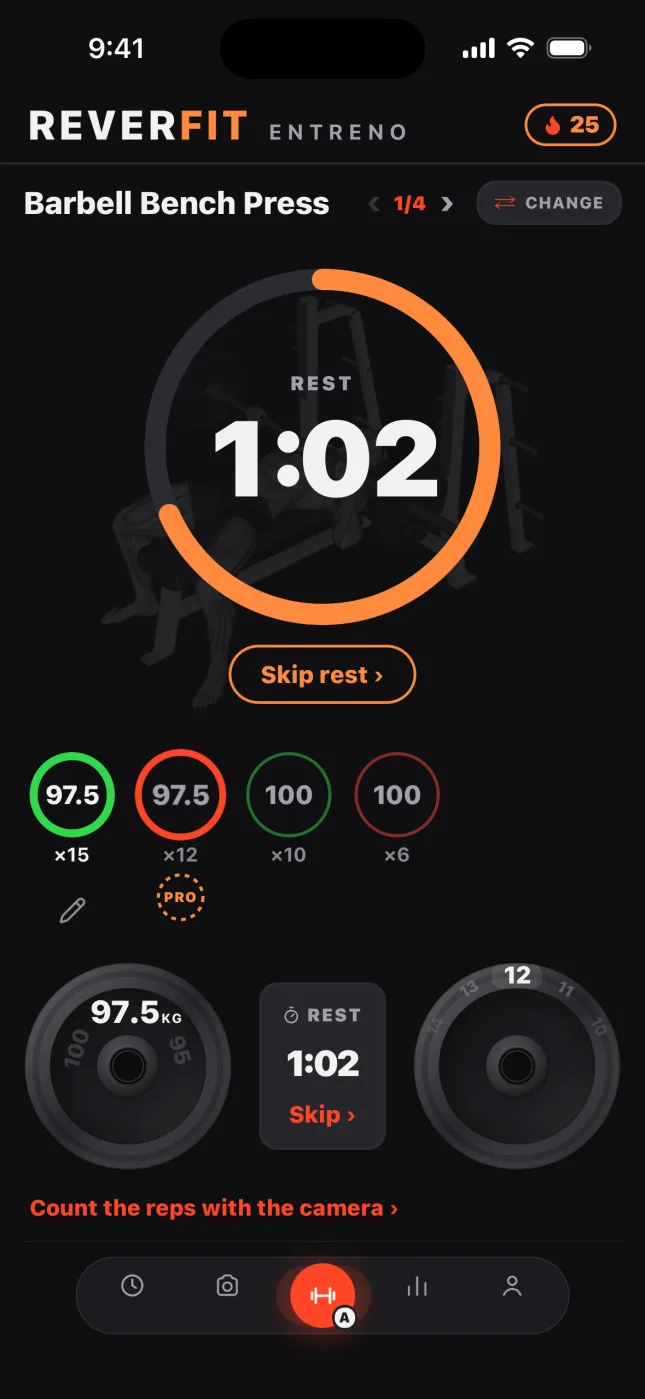
Each set, a ring.

You log the weight and the reps you really did, with what you did last time right in front of you. And when you finish, whether it was hard, fine or you had strength to spare.

Your rest, in view.

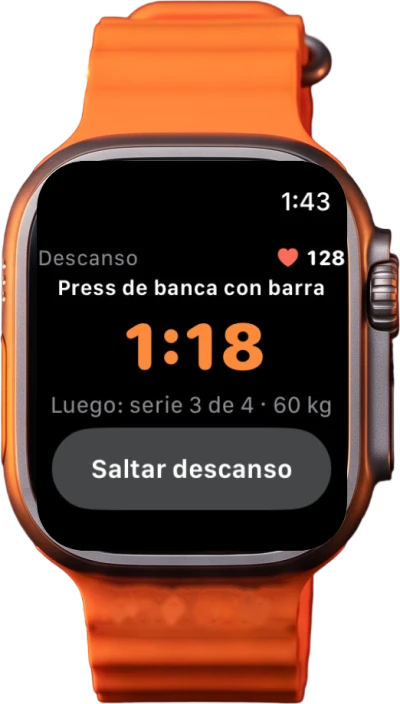
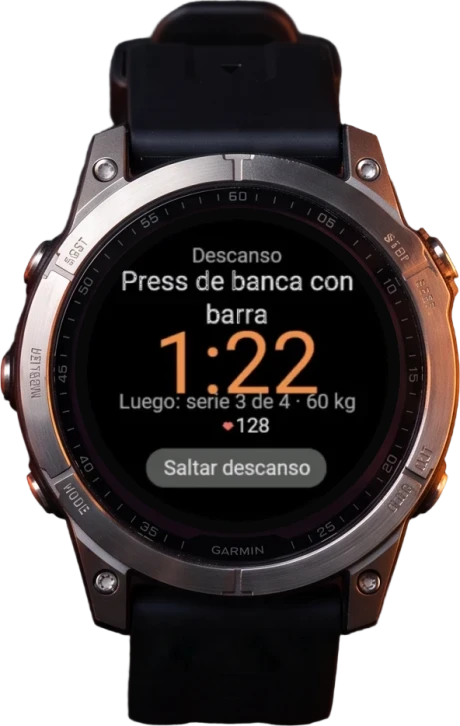
A big countdown and a strong alert when it ends, even with the screen locked. Below it, what's next: the next set and its weight.

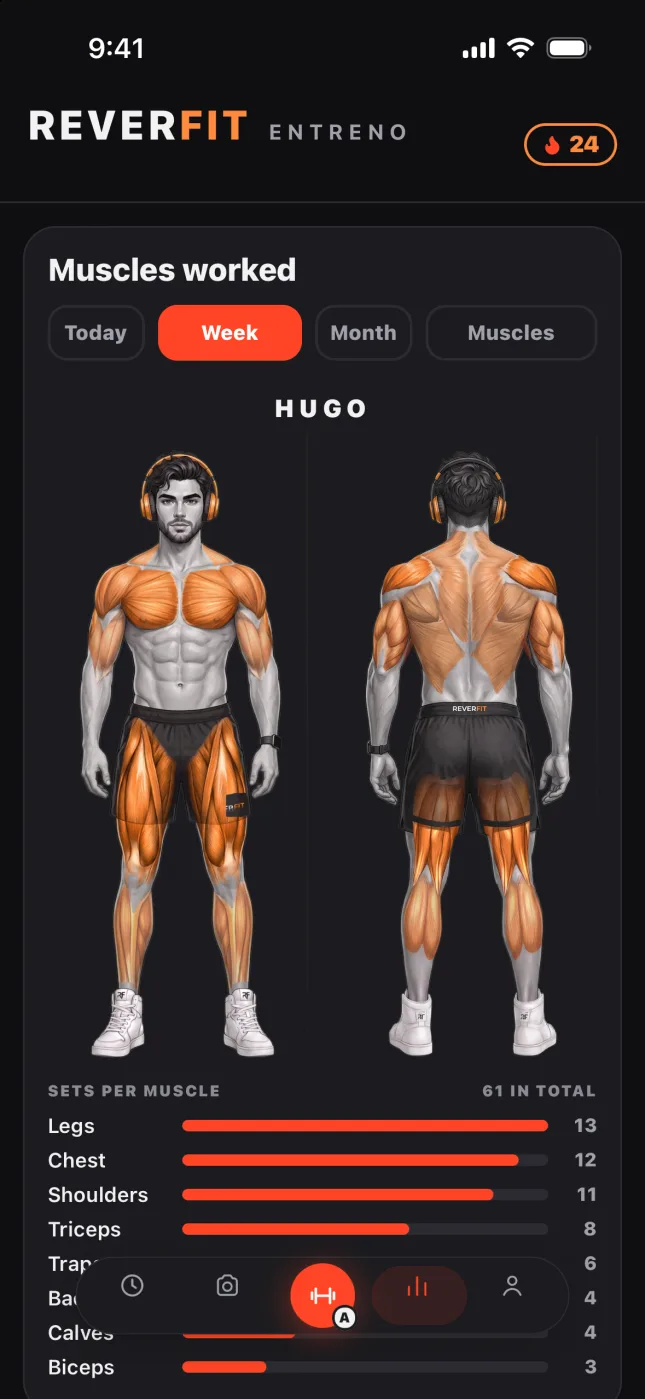
What you've worked.

The muscles of the week and the month, lit up on the body, and how many sets each one has had. With Pro.

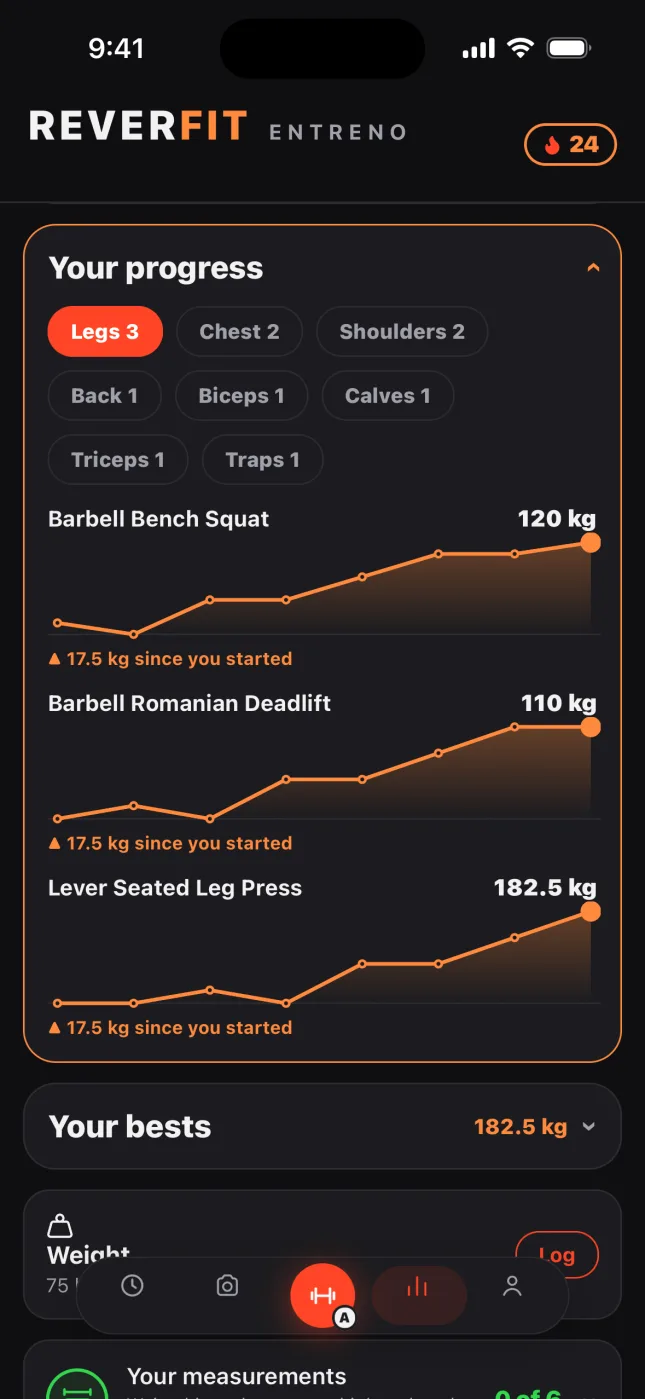
Watch it go up.

The curve of each exercise since you started, and what you've gained. With Pro.

Your bests.

Your best weight in each exercise and your estimated max: what you'd lift just once. With Pro.

Hugo and Nora

Hugo and Nora, on video.

In cardio, our models do the exercise in front of you: running, the treadmill, the exercise bike and the elliptical, and also the bike, the rower and the ski erg. Free; strength exercises come with their animated drawing.

Running · Nora
Treadmill · Hugo
Exercise bike · Nora
Elliptical · Hugo

Hugo and Nora are our models, created with artificial intelligence.

On your wrist

Your workout, on your watch.

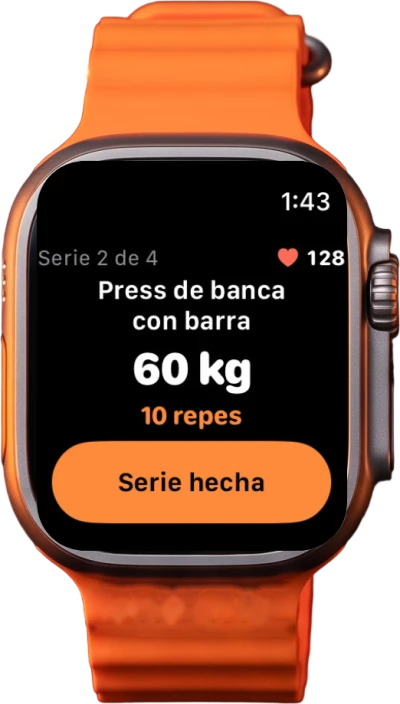
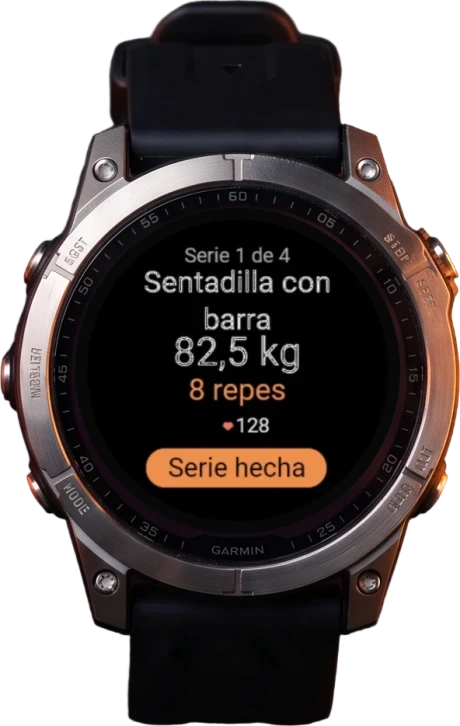
Log the set and skip the rest from your wrist, with your heart rate in view.

Reverfit Workout on the Apple Watch: the set with weight, reps and the Set done button
Apple Watch
Reverfit on a Garmin watch: the set with weight, reps and heart rate
Garmin
Reverfit Workout on the Apple Watch: the rest countdown
Apple Watch
Reverfit on a Garmin watch: the rest, with what comes next
Garmin

Apple Watch, with your iPhone. On Garmin, the «Reverfit» app from Garmin's Connect IQ store, with Garmin Connect on your phone.

The app’s guide

How it works

The same guide you have inside the app, in Settings › How it works.

01

The app at a glance

At the bottom you have five tabs: Today, Train, Community, Progress and You. The planet in the middle is the Community, with the number of your notifications, and Train carries the letter of today's session. The bar shrinks while you read: tap it or scroll up and it opens.

At the top, in the header, the flame is your streak, and you also see it while training; to its right, the gear opens Settings, with General, Your account and this guide. If you see «No backup» in Progress, tap it and you go to your account.

Reverfit Workout: the Today screen
02

The colors: Hard, Normal or Easy

When you finish each set you tap how it went. Each word has its color and says how many reps you had left, what gyms call RIR:

  • Hard: none, or one.
  • Normal: two or three.
  • Easy: four or more.

Before you do it, the set is a thin ring with your last time: its weight, its reps and its color; if there is none, it takes the color the plan expects for that week. When you log it, the ring turns thick in the color you tap and closes according to the reps: if it asked for 12 and you log 10, a gap is left.

With Pro, below it goes the small ring, in amber, with the weight the app suggests: tap it and it goes on the dial. The first time you do an exercise it doesn't appear.

  • Up if it was Easy, or Normal and you reached the reps.
  • Repeat if it was Normal and you didn't reach them, or Hard and you did.
  • Down if it was Hard and you didn't reach them.

How much it goes up or down depends on the equipment, because not all of it takes the same weights:

  • On a weight-stack machine or a cable, where you pick the weight with the pin, in steps of 5.
  • With a barbell, a Smith machine or a plate-loaded machine, in steps of 2.5, which is what two 1.25 plates add up to.
  • With dumbbells, in steps of 1 up to 10 kg and of 2.5 from there on.
Reverfit Workout: the set with the Hard, Normal and Easy buttons
03

Today

Your week goes at the top: each day you train carries the letter of its session, and the plan moves forward when you start training, not with the calendar.

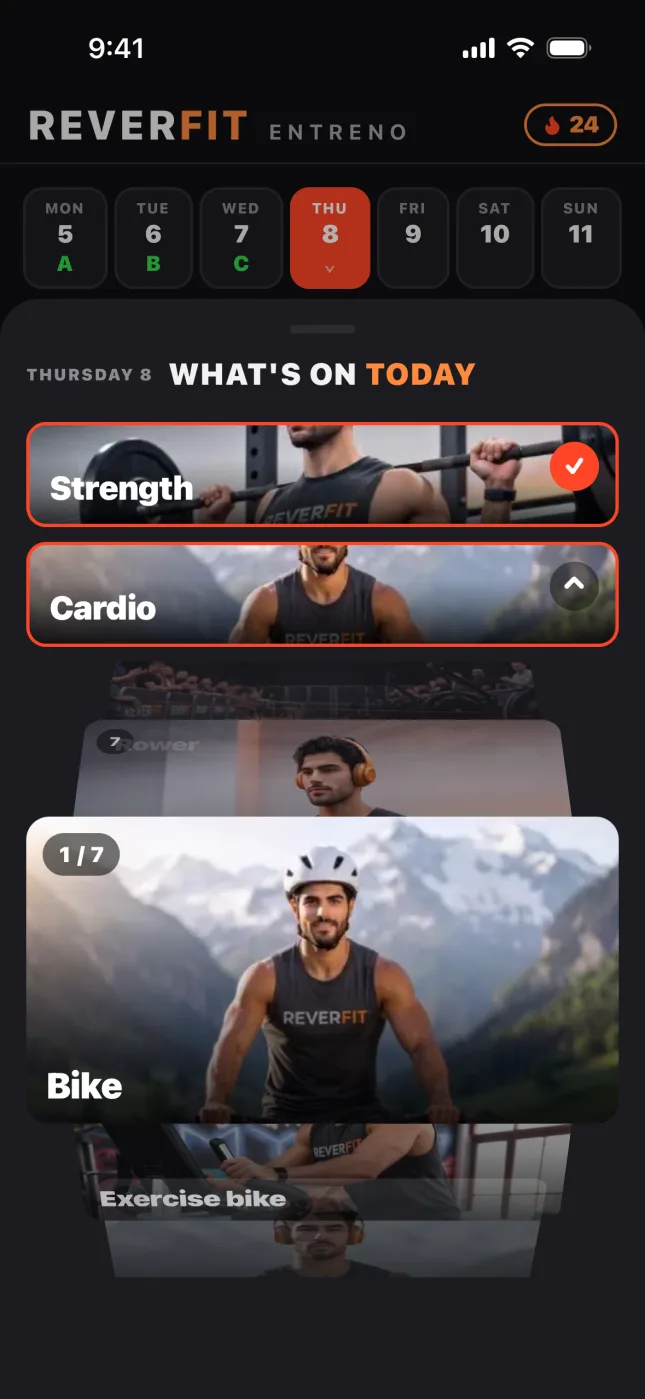
  • Tap today and in «What's on today» you choose your plan's session or something else, like running or the bike. If you choose something else you don't use up your session: tomorrow it comes up again.
  • Tap an upcoming day and you'll see, grayed out and just to look at, the session you'd have if you trained every day. Tap today to go back.
  • Press and hold an exercise to move it, or switch it off with its toggle and it stays «not today»: all of it, just for today.

«Change session», the circle on the left of «Start», shows you all the sessions in your plan with their names and exercises: you pick one and today becomes that one, and if you train, tomorrow you carry on with the one after it. If you had already logged sets nothing is lost: what's done stays and the new one opens separately, like a second workout of the day. It doesn't show if your plan has only one session, or with HIIT set from the day at the top, which isn't part of your plan and is changed right there, by tapping the day.

With the whole session done you get your score from 0 to 10, which looks at the sets you did, how they went and your new bests, and the comparison sets your kilos against the last time you did that session.

  • If this week you train more days than your plan says, you get «Extra day!».
  • With the session done, «Train again» opens the next one in the plan and saves the previous one, up to four workouts a day. If you leave it half done, «Move to the session», on your session's card, does the same.
  • At the very bottom, the note for the day keeps how you felt.
Reverfit Workout: what's on today, with strength and cardioReverfit Workout: the Today screen
04

Train and log

Turn the dial for the weight and the wheel next to it for the reps, which start at the plan's, and tap Hard, Normal or Easy: the set is logged. Turn your phone sideways and you'll see the weight, the reps and the rest in big, to read it propped up; turn it upright to go back.

  • Between sets your rest runs, the one in You › Training, which applies to every exercise even if the plan says otherwise. With beeps on in Settings › General, its last five seconds beep.
  • If in that same place you switch the rest off with its toggle, there's no countdown: you carry on with the next set and, when you finish an exercise, you move to the next one by yourself; on the last one you're left with «finish the session». Mixed blocks and HIIT stay the same.
  • Tap the dial without turning it and the plate calculator shows you your bar with the kilos on each side. You change the bar by sliding it sideways, or in You › Training: the Olympic bar weighs 20 kg, the women's 15, the technique bars 10 and 5, or no bar.
  • With the pencil on a set already done you correct it, timed ones too, even after finishing the exercise; and if you go back to it with ‹ ›, too.
  • With ⇄ you swap the exercise for another one for the same muscle: «Just for today», and tomorrow the usual one comes back, or for good in your plan.

What doesn't go by reps is logged like this:

  • Cardio: you choose the minutes and the ring counts down; when you finish you tap how it went and the minutes you did are logged.
  • Seconds and meters: with seconds there's a countdown and the ones you hold are logged; with meters a stopwatch runs until you tap «Done», and your time is logged.
  • Mixed: every few strength sets, counted in a row even if you change exercise, the app gives you a block of cardio, of abs or of both.
  • HIIT: after ten seconds to get ready, each exercise lasts what the block says, in order and with its rest, and the round repeats. It beeps in the last seconds, vibrates on each change and you can pause or skip a stretch; when you finish, the seconds worked in each round are logged.
  • Running and bike: you set the distance, tap Start and it times you; when you finish you can correct the kilometers, and you tap how it went.
  • In cardio Hugo or Nora keep you company on video, depending on your sex: running, on the treadmill, on the bike, on the exercise bike, on the elliptical, on the rower or on the ski erg.
  • Heart rate strap, with Pro: any Bluetooth chest strap works, and some wristbands with heart rate broadcasting on, and it connects in Settings › Your account › Heart rate strap. For weights, the wrist fails: the chest is better.
  • Garmin watch: the START button marks the set as done and, during the rest, skips it, and the watch's heart rate reaches the app just like a strap's. You need the Reverfit app on the watch, from Garmin's Connect IQ store, and Garmin Connect on your phone.
  • Surprise workout: if you don't feel like today's session, tap the spinning circle, the one with the question mark, to the right of «Start». A stack of ready-made workouts appears: strength at the gym, at home with no equipment, intervals and core, cardio and mobility. If you can't decide, «Surprise me» picks one at random. At the top you pick the mode: Easy, Normal, Hard or Mixed. Doing it doesn't move your plan.
  • My gym's Pro: if your gym uses Reverfit, go to Settings › Your account › «My gym's Pro», type your member code, the same one as in the Reverfit Member app («Reverfit Socio» on the stores), and tap «Sign in»: your gym sets your workouts, sees what you do and you get Pro for free while you're a member. You keep everything you had. If you open Workout from the Reverfit Member app, the code goes in by itself.
Reverfit Workout: the exercise in progressReverfit Workout: the rest countdown
05

Your history

In Progress, the figure is shaded with each muscle's sets for today. With Pro, also for the week or the month, and in «Muscles» you tap one to see its exercises. Further down is the month in rings, one per workout:

  • Full: complete workout, in the color you tapped most that day.
  • Half done: you left sets out.
  • Two rings: you trained twice that day.

Tap a day and you see everything you did, just to look at: the past can't be changed. Without Pro the last three months open; anything older shows on the calendar but doesn't open, and nothing is deleted.

With Pro, in «Your progress» you get the curve of every exercise you've done on two days or more, and in «Your bests», your best weight and your estimated max: what you'd lift just once according to the Epley formula, weight × (1 + reps ÷ 30), an estimate and not a record.

The flame counts days, not workouts, and goes back to zero if too many days pass between one training day and the next. Depending on the days a week in your plan, what can pass between one and the next:

  • 2 days a week: up to 10 days.
  • 3 days a week: up to 8 days.
  • 4 days a week: up to 6 days.
  • 5 days a week: up to 4 days.

The overall ranking is voluntary: you join with an alias, only your totals go up and you leave whenever you like.

When you finish a workout, in Today, «Photo ›» lets you take a photo or pick one from your library, and we put the brand, your streak and today's session along the bottom, or you get the card with your numbers. «Share» opens your phone's share menu, «Save the photo» leaves it in your gallery and, if you're in the community, «Post to the community» puts it with your workout on the feed.

Reverfit Workout: muscles workedReverfit Workout: your progressReverfit Workout: your bests
06

The community

It's the planet in the middle of the bar. It's the same community as 8Round's: your nickname, your friends, your chats and your blocks are the same in both apps.

  • It opens with the planet spinning and, below it, the people in the community. At the top, two buttons, «Find a training partner» and «Workouts», and on the right the notifications bell. Your friends are folded into the «Friends» pill: tap it and they unfold, and touching the planet folds them again. Anything waiting for your answer pulses, and its button shows a red bubble with how many. The number on the planet, and on the app icon, adds up your unread messages, your friend requests and anything new under the bell.
  • Once you have an account you're already in: the app gives you a free nickname (with your name, if Apple or Google gave it to us) and your city, the nearest one based on your connection. If you're an adult, you show up on the map with that nickname. While it's still the one the app gave you, «Complete your profile» appears at the top of Community: there you change it, only once, for your own or for one of three free alternatives, and you choose your city and whether you show on the map. Nobody else can have your nickname (capitals and accents don't matter) and it's the same in 8Round. If the app doesn't know your date of birth yet, you add it when you open Community, together with your nickname and your city.
  • The map: spin the planet and zoom in; below, the people in the part you're looking at, with their city and country and, if they show them, their sex and age, and «Add» to send them a friend request. Tap their circle to see their profile. First come those who have trained in the last 7 days and, within that, people from your city and then from your country; your friends in that area go last. Anyone who doesn't want to appear with their name shows as «No name», with their app's icon (8R or Workout), nothing else, and can't be messaged; if there are fewer than 3 in their city, they count in their country. Countries, cities and towns on the map come from GeoNames (geonames.org, CC BY 4.0 licence).
  • «Who to follow»: on the «Friends» feed, between the workouts, you see people from the community who aren't your friends yet, with «Add» to send them a friend request. Minors never appear there.
  • «Workouts», the second button at the top (tap it again to go back to the planet), opens the feeds. «Friends»: your workouts and your friends', with the row of your friends at the top to open their profile, and what there is to celebrate (your first workout, workout number N or weeks in a row). «World»: the globe; spin it or tap a country to see the workouts of people from that country in the last 30 days, the most high-fived first. And, if you've added your gym, «Your gym», with the people from your gym. Always at the very top, the monthly challenge: bronze for 6 workouts in the month, silver for 10 and gold for 15; «Join the challenge» shows a bar with how many you've done and «Leave the challenge» removes it.
  • Every workout you finish goes on the feed by itself, for your friends and for everyone: a strength one when you reach the end of the session, an activity when you finish it, and a session you leave half done, the next day. In the three dots of one of your workouts you choose who sees it (everyone, your friends or only you) or you remove it with «Remove from the feed».
  • Under each workout, «High five» is the like: you can see how many high fives it has and, tapping the number, who gave them. With the speech bubble you comment, and in the comments «Translate» shows other people's comments in the app's language; turn it off to see them as they were written. On your friends' workouts, «Copy» saves it to your account, and you'll find it in Today › «Change session», under «Saved»; tap it again to remove the copy. On yours, the arrow shares it. The exercise where someone beat their record has a trophy.
  • Friends: friendship goes both ways, one asks and the other accepts. You ask with «Add» on the map or in «Who to follow». Requests you receive appear at the top, pulsing, with «Accept» or «Decline». In each friend's circle, their photo or, if they have none, their app's icon; on the right, the 8R if they're also on 8Round. The ring is pink for women and blue for men, if they show it. If a friend has set a record, their circle shows a little bell until you tap them. Tap a friend to open your chat, or their circle to see their profile.
  • In the chat, «Translate», at the top, shows your friend's messages in the app's language, in the same bubble; tap it again to see them as they were written. It stays on for that conversation and it's free; on Android and on iPhone with iOS 18 or later, it's translated on your own phone, without the text leaving it. «Photo», next to where you type, sends a photo from your camera roll; it only appears if you're both (in a group, everyone) 18 or over, and every photo goes through an automatic filter first: if it isn't appropriate, it isn't delivered. Under your messages, the ticks: one, sent; two grey, delivered; two green, read. Press and hold one of your messages to delete it for everyone or, in its first 15 minutes, edit it. Messages with insults aren't sent. In Settings › Your account › Community, «Chat background» puts a photo of yours behind your chats; only you see it.
  • Groups: with your friends unfolded, tap «Groups» to see your groups (and «Your friends» to go back); on the right, «New group»: give it a name, tick the friends you want (up to 50 people) and «Create». Whoever creates it is the admin: from the group's three dots they add their friends, remove someone or rename it. Anyone can see the members, leave the group or report it. Each message shows the nickname of who wrote it.
  • «Find a training partner», the first button at the top, is a board of ads to find someone to train with, the same as in 8Round. With «Post my ad» you say where you train and, if you like, add a note. You see the ads from your country or, with «Worldwide», from everyone, and you can search by city; each one says when it was posted. On other people's ads, «I'm interested» sends them a notification, a friend request and a message: if they accept, you can write to each other. On yours you see who's interested: accept or decline them right there, and if you're already friends, tap them to open your chat. «Found a partner» keeps it visible with the «FULL» stamp, and «Search again» opens it again. You can have three at a time; you remove them with «Remove» and they disappear on their own after two months. Nobody sees your phone number or your email.
  • The bell, to the right of «Workouts», keeps with its count who high-fived, commented on or copied your workouts, who's interested in your ad, who wants to be your friend and your friends' records; tap one to go to it. Your phone gets notifications for messages, groups, friend requests, new ads in your city, high fives, comments, «I'm interested», copies of your workouts and, at 8 pm, your friends' records; from 10 pm to 8 am they arrive silently. Tapping a notification, even from the lock screen, takes you to it: the chat, the group, your workout highlighted in orange if it's a high five, a comment or a copy, the ads or the profile of whoever sent you a friend request. Each kind can be turned off separately in Settings › General › Community notifications; it's saved to your account, so it applies in 8Round too.
  • Your profile photo goes in Settings › Your account › Community › «Profile photo»: you pick it from your camera roll and it's cropped to a square. It's your account's photo, the same in Workout and 8Round, and your friends and anyone who sees you on the map can see it. In the same place, «Your profile» shows your workouts, your friends and your high fives.
  • The app takes your date of birth from You › Your details. Without it you can't enter the community: tapping it shows «What year were you born?» with «Enter», and you don't see the map, the board or the chats. If you turn 14 or 18 this year, it asks for the full date. With just the year, it counts as 31 December; the full date goes in You › Your details.
  • The community is for ages 14 and up. From 14 to 17, only your friends and other minors can see you, you don't show on adults' map, and an adult can only send you a friend request with your code, which you'll find in Settings › Your account › Community to share it. To add a minor: «Add with code», in the same place, type their code and «Add». Under 14 it can't be used. Your age comes from your date of birth and can't be changed to cross 14 or 18: only in the first 24 hours, to fix a typo, or on your birthday.
  • In Settings › Your account › Community you also change your city, «Private profile» (only your friends see your workouts), «Post my workouts», «For everyone» (when it's off, your workouts only go to your friends) and «Your gym», with your member code, and you can read the «Community rules». While you show on the map, «Sex» (the pink or blue ring) and «Age» are on by default, and you turn them off there.
  • Report and block: in the chat, the three dots at the top (remove from your friends, block or report); on a profile or on someone else's workout, their three dots; in a group, «Report» in its three dots; in «Find a training partner», the ad's three dots; and a chat photo, by tapping it. Anyone you block can't write to you or see you in the community. What you report disappears for you right away and we review it within 24 hours; if three people report it, it disappears for everyone. A reported photo stops being visible to everyone straight away.
  • To stay off the map, turn off «Show me on the map» in Settings › Your account › Community: you then only count as «No name» in your city, nothing else, and that can be turned off there too, with «Count as «No name» on the map». To stop your workouts being posted automatically, turn off «Post my workouts». And to leave completely, when you delete your account (Settings › Your account) tick Reverfit Workout: your community data is deleted; if you also use 8Round, your nickname and your friends stay there.
07

The monthly challenge and badges

At the very top of the community feed there's always the monthly challenge, with three medals: bronze for 6 workouts in the month, silver for 10 and gold for 15. It's yours: you don't compete with anyone.

  • «Join the challenge» shows a bar with how many you've done that month, and each medal is yours when you reach its number.
  • «Leave the challenge», below the bar, removes it.
  • There are also milestones: workouts done (the first, 10, 25, 50, 100, 200, 300, 500 and 1000), records (the first, 10, 25, 50 and 100) and weeks in a row training (4, 8, 12, 26 and 52), each with its metal.
  • When you earn a badge, it falls spinning with sparks; from there you can share it or go to «See my badges».
  • In Progress › Badges is your trophy case: how many you have and your level (bronze at 5, silver at 15 and gold at 30), each month's challenge with the best medal you earned, and your milestones. The ones you're missing are greyed out and, when you tap one, it spins.
08

Your plan

In You › Training, in «Plan in a minute» you choose the type —Strength, Mixed or HIIT—, the days, the time and, if you like, the muscles, and the app builds your routine with your level and your training goal: it always asks your level first, with your current one already selected, in case you've moved up; the goal, only if it's missing; and both are saved in Your details. It uses exercises from the catalog with their drawing, you use it from today or save it in My plans, and then change whatever you like. In HIIT you get three blocks for your level, A, B and C, which rotate across your days. Without Pro, one Plan in a minute every eight weeks; with Pro, as many as you like.

In «My plans», tap the current plan to edit it, save it under a name or go back to week 1 without deleting your history; in «Plan progress», each full cycle through its sessions counts as a week. «Create a new plan» saves it empty in the list, with its sessions without exercises, and the one you're on doesn't change until you tap «Use» on another, which starts at its week 1. Three plans of your own are kept without Pro; the fourth, with Pro.

With the personal trainer, which is paid for and is offered with the app in English, Spanish or Portuguese, someone on our team makes your plan and adjusts it with you by message; while they look after it, to change anything, you message them.

When editing a plan:

  • Weeks, sessions and days: the body is split across your sessions, A, B, C…, and you say how many days you come. If you come more days than there are sessions, the rotation carries on, and for the streak and the extra day what counts is how many days, not which ones.
  • Effort per week: each week is a ring you change with one tap between Normal, Hard and Easy. It's the thin ring you see while training.
  • Exercises: tap one to change its sets and reps, and swipe it left to remove it; press and hold a session's header to move it.
  • Moving a session: the letters stay put and what moves is their content, the name and the exercises, with your history behind them. If you move C to the first place, A becomes what C was. The order of the plan changes, but today's session doesn't: you choose that in Today, under «Change session».
  • Session type: in HIIT, each exercise is done for the work time, you rest and move to the next, and the round repeats for as many rounds as you set. Stations are legs by meters, one after another, each with its time, and whatever you add goes in meters. In a mixed session, the block's exercises carry «block» in front and whatever you add goes in as strength.
09

Your numbers and your details

What you answered at the start can be changed whenever you like in You › Your details, and the app won't ask you again.

  • Man or woman decides your drawings and whether Hugo or Nora keeps you company in the cardio videos.
  • With your date of birth, your age updates by itself, and in the calculations it's only needed if you train with a heart rate strap.
  • With your level and your training goal, «Plan in a minute» builds your plan.
  • Height doesn't go into Workout's calculations, but your personal trainer sees it, if you hire one.

What you use up in each session is an estimate, and without your weight it isn't calculated. Without a strap, it comes from your weight, the minutes and the type of exercise, and goes up if half your sets were Hard; with a strap, from your heart rate, your weight, your age and your sex, and in strength only the minutes with your heart rate in the green zone count.

10

Weight and measurements

Your weight is logged in Progress, in the Weight card, for today or for a past day; turning the weight wheel in You › Your details logs today's. One weigh-in is saved per day, and your weight becomes the most recent one: it's used to work out what you use up in each session, and in Progress you see its curve.

Body measurements are also logged in Progress, in «Your measurements»; in Your details you only see a summary that takes you there.

11

The other app

If you also use Reverfit Diet, what you train today appears there, in Today, with its minutes and the calories used. It's information: it isn't added to what you can eat, because these figures are generous and would eat into your deficit without you noticing.

For the two apps to talk to each other, sign in to both with the same account.

12

Your account and your backup

Reverfit Workout is used with an account: your things are saved in the cloud, and on another phone you sign in and get them back. When you open the app you choose how: with Apple, with Google or with your email. If your gym uses Reverfit, your member code goes in afterwards in Settings › Your account › «My gym's Pro».

The same account works in Reverfit Diet, Reverfit Workout and 8Round. When you sign in, the app uses what you already answered in Reverfit Diet, like your date of birth, your weight or your height, and fills it in for you.

When you delete your account, you see the apps where you use it, Reverfit Diet, Reverfit Workout and 8Round, and you tick which ones to delete it from: everything in those is deleted, your history and your data, and it can't be recovered. In the ones you don't tick, your account stays as it is. If you tick them all, or delete the last one you had, the account no longer exists.

In «Backup»:

  • «Save a backup» opens the share menu to leave it in your notes or your files. The backup contains your plans, your workouts, your details and your settings, but not your account or your gym code.
  • «Bring a backup from another phone» replaces everything you have, so save yours first.
  • «Export as CSV», with Pro, gives you your sets in a table, which can't be used to bring them back.
  • If you kept your workouts in another app, you can paste the CSV that some of them export, and they're added to your history without deleting anything.
13

Free, trial and Pro

With Pro you get the small ring that tells you the weight for each set, the map of your muscles for the week and the month with its «Muscles» mode, «Your progress» with the curve of every exercise and of your heart rate, «Your bests», your whole history from day one, the heart rate strap and exporting your sets to CSV.

In the free version you have up to three plans of your own and one «Plan in a minute» every eight weeks, and you see today's map and your history from the last three months: older entries are not deleted and come back with Pro. Everything else is free: training and logging, swapping exercises, the plate calculator, Hugo and Nora's cardio videos, the surprise workout, changing session, the ranking, your weight and measurements, the photo and the backup.

You can try Pro for free through your phone's store and cancel whenever you like. If your gym has Reverfit's Workout module, with your member code in «My gym's Pro» your gym pays for Pro and everything is open to you.

14

Modes, alerts and sounds

In Settings › General you choose how the app looks: Light, Grey or Dark. Vibration is felt when turning the wheels and the weight dial, on HIIT and mixed-block changes and when your rest between sets ends; the sound is the click of those same wheels and the dial.

In «Units» you choose kilos or pounds for your weight, height and measurements. Weights you lift stay in kilos, and what you've already logged doesn't change, only how it's shown.

With «Coach voice» on, which is how it comes, Hugo or Nora keep you company while you train: they greet you at the start, tell you when you move on to the next exercise and which set is next, let you know ten seconds before the end of the rest, and cheer you on in the last set, when you beat a record and at the end. With Pro, they also tell you whether to go up, repeat or go down in weight in that set. You choose who talks to you, and while they talk your music turns down a little. They speak the app's language: English, Spanish, Portuguese, French, Italian or German.

The beeps sound in the last seconds of every countdown: the rest, cardio and sets by seconds, HIIT, the mixed-session block and activities with minutes.

With «Alerts and sounds» off, the app doesn't alert you or make a sound: the rest doesn't leave the app (not on the lock screen, not as a notification, not with the alarm at the end), the beeps and the wheel click go quiet, and the sets microphone answers you in writing only. The rest keeps running inside, in silence, and whatever you've chosen in General comes back as it was when you switch it on again. Vibration is separate.

On iPhone, if you train with an Apple Watch, the watch keeps alerting you at the end of each rest: to stop it, switch off rest between sets or put the watch on silent.

On iPhone, in You › Features, «Share anonymous usage» lets the app count how long you spend on each screen and how often you open it, with a random number for this phone and never your account or your name, so we know what gets used and can improve it. If you turn it off, nothing is counted and anything waiting to be sent is deleted.

15

Your health

The app's figures are estimates: calories, your heart rate zones and the estimated max. If you have an injury or a health problem, mention it at your gym or see a professional before you start.